

Sunday, October 11, 2026
If you are new to the world of Fusion 360 3D design, sketch constraints can often feel like a stumbling block. You draw a shape, try to move a line, and suddenly your entire geometry collapses or moves unpredictably.
Understanding how sketch constraints work is the single most important step toward creating stable, parametric CAD models. In this guide, we will break down what constraints are, why you need them, and how to master the essential rules every beginner must know.
What Are Sketch Constraints?
In parametric CAD modeling, constraints are rules applied to 2D sketch elements—such as lines, arcs, and points—to control their position, size, and relationship to one another.
Instead of manually dimensioning every single edge, constraints allow you to define geometric intent. For instance, if two lines should always remain perpendicular, applying a constraint ensures they stay at a 90-degree angle no matter how much you tweak the rest of your design.
Why Are Constraints Essential in CAD?
Using constraints correctly transforms chaotic geometry into fully defined sketches. Here is why they matter:
- Predictable Edits: When you change one dimension later in your project, a properly constrained sketch adjusts without breaking.
- Error Prevention: Constraints prevent accidental shifts or warping when building complex assemblies.
- Streamlined Workflow: Combining constraints with smart dimensions speeds up your modeling process, making your work in Fusion 360 3D far more efficient.
Key Constraints Every Beginner Should Know
While there are many constraints available, focusing on these core types will solve 90% of your beginner sketching frustrations:
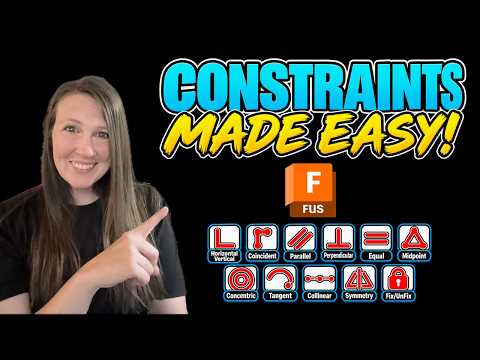
- Horizontal/Vertical: Forces lines to align horizontally or vertically relative to the sketch plane.
- Coincident: Connects two points together or snaps a point onto a line or curve.
- Tangent: Creates a smooth transition where a line meets a curve or circle without sharp angles.
- Equal: Forces two or more lines or circles to maintain the exact same length or radius.
- Parallel & Perpendicular: Keeps lines aligned in parallel or locked at right angles.
- Concentric: Aligns the center points of multiple circles or arcs.
Best Practices for a Clean Workflow
To keep your sketches tidy and manageable, follow these quick tips:
- Look at Line Colors: In Fusion, blue lines mean geometry is unconstrained (it can still move), while black lines indicate fully constrained geometry. Aim for black lines before extruding!
- Let Auto-Constraints Help: As you draw, subtle constraint icons will pop up automatically. Pay attention to them so you don't accidentally lock a line where you didn't mean to.
- Combine Constraints and Dimensions: Use geometric constraints first to establish relationships, then add dimensions to set specific measurements.
By mastering these fundamental rules, you will eliminate modeling frustration and unleash the full parametric potential of Fusion 360 3D. Start practicing on simple 2D shapes today, and watch your CAD confidence soar!


