
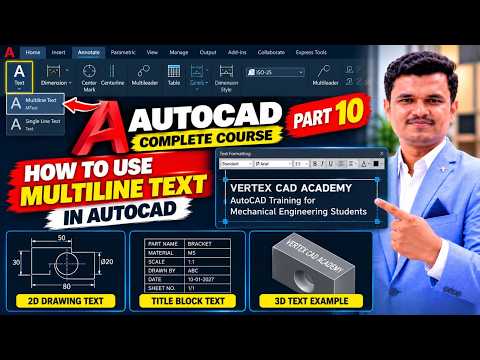
Clear communication is essential when creating precise engineering drawings and architectural plans. Whether you are drafting basic 2D floor plans or working on complex AutoCAD 3D models, adding detailed annotations, dimensions, and explanatory notes ensures your designs are correctly understood. One of the most powerful annotation tools available in AutoCAD is the Multiline Text (MTEXT) feature.
In this quick guide, you will learn how to efficiently use Multiline Text to streamline your documentation workflow.
Why Choose Multiline Text Over Single Line Text?
Unlike Single Line Text, Multiline Text (MTEXT) gives you complete control over paragraph formatting, word wrapping, alignment, and styling. Key advantages include:
- Advanced Formatting: Adjust font styles, text height, colors, and line spacing within a single text block.
- Bullets and Lists: Easily create numbered or bulleted specifications directly on your technical drawings.
- Columns and Margins: Organize extensive notes into clean, readable multi-column layouts without manual line breaks.
Step-by-Step: How to Use Multiline Text in AutoCAD
Using the MTEXT command is straightforward and fits seamlessly into any workflow, whether you are focusing on traditional drafting or detailed AutoCAD 3D projects.
- Activate the Command: Type
MTEXTor the shortcutMTinto the command line and press Enter. Alternatively, select Multiline Text from the Annotation panel on the Home ribbon tab. - Specify the Boundary: Click once in your workspace to set the first corner of your text frame, then drag and click again to set the opposite corner. This bounding box defines the width of your text paragraph.
- Enter Your Content: The Text Editor contextual tab will automatically open. Type your technical notes, descriptions, or instructions inside the frame.
- Format the Appearance: Highlight any portion of your text to change its font style, height, justification, or insert special symbols (such as degree, diameter, or plus/minus symbols).
- Close and Save: Click Close Text Editor on the ribbon or click anywhere outside the text boundary box to apply the changes.
Tips for Better Annotation Management
To maintain consistency across large AutoCAD 3D assemblies or standard floor plans, always utilize defined Text Styles (STYLE command). Additionally, placing your MTEXT on dedicated annotation layers allows you to manage object visibility and plotting properties effortlessly.
Conclusion
Mastering Multiline Text is a fundamental skill for any CAD designer looking to produce clean, professional-grade documentation. Start incorporating MTEXT into your daily routine to save time and elevate the quality of your AutoCAD projects today!
