

Monday, October 19, 2026
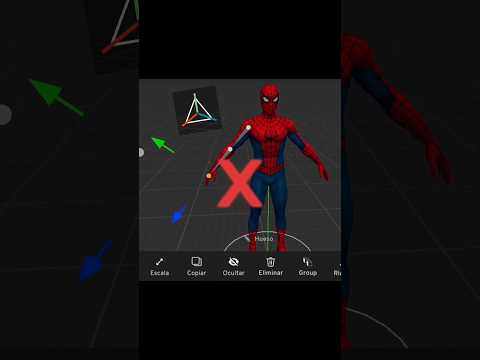
Are you struggling to make your mobile 3D animations look smooth and realistic? If your models end up stretching unnaturally or bending in weird angles, chances are you are setting up your armatures incorrectly. Rigging is the foundational process of adding a skeleton to your digital mesh, and mastering it is essential if you want to bring your 3D character to life seamlessly.
Fortunately, with the release of Prisma 3D version 3.3, mobile rigging has become significantly easier and faster. Here is a quick guide on how to avoid common mistakes and utilize the built-in auto-rigging tools like a professional.
Why Traditional Mobile Rigging Fails
Manual bone placement on a mobile device can be frustrating and prone to error. Beginners often place joint pivots outside of the mesh geometry, create broken parent-child hierarchies, or assign improper weight paints. These mistakes lead to unnatural deformations and glitchy animations when moving arms and legs.
Step-by-Step Auto-Rigging in Prisma 3D
The auto-rig feature in Prisma 3D 3.3 simplifies the technical setup so you can focus on creative animation. Here is the proper workflow to prepare a 3D character for posing:
- Prepare Your Mesh: Ensure your model is exported in a standard T-pose or A-pose with clean geometry before importing it into Prisma 3D.
- Enable Auto-Rig: Access the rigging tools in version 3.3 and select the Auto-Rig feature.
- Position Reference Points: Align the joint guides carefully with anatomical pivot points such as shoulders, elbows, hips, and knees.
- Generate and Inspect: Generate the bone structure and immediately enter Pose Mode to test the range of motion.
Pro Tips for Smoother Deformations
Even with automated tools, a quick manual inspection makes a massive difference. Always inspect joint rotations from multiple angles. If you notice strange mesh pulling around the shoulders or waist, adjust the guide positions slightly before finalizing the rig.
By applying these simple steps, you can save hours of tedious manual setup and turn any model into a fully poseable 3D character ready for action. Stop struggling with broken rigs and level up your mobile 3D workflow today!


