Cad 3D Category

Showing posts with label CAD Tutorials. Show all posts

Master the Textmask Command: Essential Engineering CAD Tips for Cleaner Drawings

Sunday, September 27, 2026
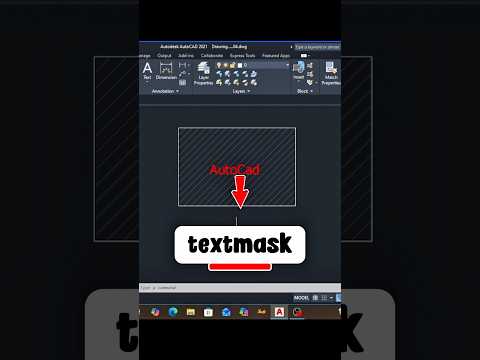
When working on complex technical drawings, clarity is the most important factor. There is nothing more frustrating than trying to read critical dimensions or annotations that are obscured by hatch patterns, grid lines, or overlapping geometry. In the professional world of Engineering CAD, maintaining a clean and readable workspace is a hallmark of a high-quality project.

One of the most effective yet underutilized tools to solve this problem is the TEXTMASK command. In this guide, we will explore how this feature can transform your workflow and improve the professional quality of your documentation.

What is Textmask in AutoCAD?

The Textmask command creates a "mask" or a hidden background behind your text or MText objects. This mask automatically hides any drawing elements (lines, circles, or hatches) that sit directly behind the text. Unlike simply moving text to an empty space, Textmask allows you to place annotations exactly where they need to be—even over busy areas—without sacrificing legibility.

How to Use the Textmask Command

Using this tool is straightforward and can be done in just a few seconds. Follow these steps: 1. Type the Command: Type TEXTMASK into the command line and press Enter. 2. Select the Text: Click on the text or multiline text (MText) objects you wish to mask. 3. Adjust Settings (Optional): You can enter 'O' for Options to choose the mask type (Wipeout, Solid, or 3D Face) and adjust the offset distance. 4. Apply: Press Enter again to complete the process.

Your text will now appear clearly with a clean buffer around it, ensuring that your Engineering CAD designs remain professional and easy to interpret for contractors and manufacturers.

Why Every CAD Drafter Should Use It

In a busy project, you often don't have the luxury of "dead space" to place your notes. Using Textmask ensures that your annotations stand out. Furthermore, if you need to revert the changes, the TEXTUNMASK command allows you to remove the background instantly without damaging the underlying geometry.

Mastering these small but powerful tips is what separates a beginner from a professional in the field of Engineering CAD. By implementing the Textmask command into your daily routine, you save time on manual trimming and ensure your final outputs are always top-tier.

Continue Reading | ความคิดเห็น

Level Up Your 3D CAD Skills: Speed Battles, Tutorials, and Expert Tips

Thursday, August 20, 2026

Are you ready to test your speed, efficiency, and precision in digital design? Whether you are a seasoned engineer, a passionate designer, or a student looking to enhance your skill set, pushing your boundaries in 3D CAD can be both thrilling and immensely rewarding.

Speed modeling battles have rapidly become the ultimate arena for creators to showcase their expertise under pressure. However, behind every lightning-fast modeler is a solid foundation built on proven workflows, keyboard shortcuts, and clever techniques.

The Thrill of Competitive Speed Modeling

What separates an average designer from a lightning-fast pro? It usually comes down to tool mastery, feature organization, and strategic planning before drawing the very first sketch. In fast-paced modeling competitions, participants face off against the clock to recreate complex parts accurately in record time.

Watching or participating in these live battles offers a unique window into how experts solve complex geometric problems on the fly. You get to observe different design approaches, clever constraint applications, and minimal-step techniques that you can immediately integrate into your own workflow.

Essential Tips to Supercharge Your Design Workflow

Speed is not merely about clicking fast; it is about working smart. To significantly boost your efficiency in 3D CAD, consider implementing these practical strategies into your routine:

  • Master Keyboard Shortcuts: Customizing and memorizing hotkeys for your most frequently used commands saves precious seconds on every feature setup.
  • Plan Before You Sketch: Spend a few moments analyzing the overall geometry and base features of a model before starting. A logical feature tree simplifies future edits and avoids rebuild errors.
  • Leverage Constraints Wisely: Fully constraining your sketches early on prevents unexpected model breaks down the line, saving you substantial troubleshooting time.

Join the Community and Test Your Limits

Whether you want to compete against top designers in live speed challenges or simply polish your workflow through step-by-step tutorials, continuous practice is key. Mastering 3D CAD software is an ongoing journey of learning, adapting, and refining your technique. Stay curious, keep practicing, and don't hesitate to put your modeling skills to the ultimate test!

3D CAD
Continue Reading | ความคิดเห็น

Popular Posts Today

 
Support : 3Dcadbrowser | Grabcad | 3Dcontentcentral | D | E | F | G
Copyright © 2028. Engineering 3DCad Appication - All Rights Reserved