
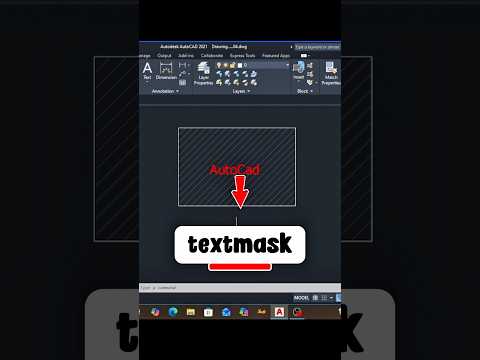
When working on complex technical drawings, clarity is the most important factor. There is nothing more frustrating than trying to read critical dimensions or annotations that are obscured by hatch patterns, grid lines, or overlapping geometry. In the professional world of Engineering CAD, maintaining a clean and readable workspace is a hallmark of a high-quality project.
One of the most effective yet underutilized tools to solve this problem is the TEXTMASK command. In this guide, we will explore how this feature can transform your workflow and improve the professional quality of your documentation.
What is Textmask in AutoCAD?
The Textmask command creates a "mask" or a hidden background behind your text or MText objects. This mask automatically hides any drawing elements (lines, circles, or hatches) that sit directly behind the text. Unlike simply moving text to an empty space, Textmask allows you to place annotations exactly where they need to be—even over busy areas—without sacrificing legibility.
How to Use the Textmask Command
Using this tool is straightforward and can be done in just a few seconds. Follow these steps:
1. Type the Command: Type TEXTMASK into the command line and press Enter.
2. Select the Text: Click on the text or multiline text (MText) objects you wish to mask.
3. Adjust Settings (Optional): You can enter 'O' for Options to choose the mask type (Wipeout, Solid, or 3D Face) and adjust the offset distance.
4. Apply: Press Enter again to complete the process.
Your text will now appear clearly with a clean buffer around it, ensuring that your Engineering CAD designs remain professional and easy to interpret for contractors and manufacturers.
Why Every CAD Drafter Should Use It
In a busy project, you often don't have the luxury of "dead space" to place your notes. Using Textmask ensures that your annotations stand out. Furthermore, if you need to revert the changes, the TEXTUNMASK command allows you to remove the background instantly without damaging the underlying geometry.
Mastering these small but powerful tips is what separates a beginner from a professional in the field of Engineering CAD. By implementing the Textmask command into your daily routine, you save time on manual trimming and ensure your final outputs are always top-tier.
