
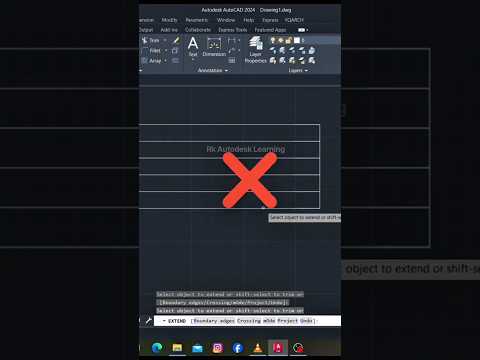
In the fast-paced world of digital design, drafting efficiency is everything. Whether you are an architect, engineer, or student mastering 3D CAD software, learning how to streamline your workflow can save you hours of tedious editing. One of the most underrated yet powerful tools in AutoCAD is the STRETCH command—a feature that seamlessly combines the actions of both 'Move' and 'Extend' into a single, effortless operation.
Why the Stretch Command is a Game-Changer
Traditionally, modifying a drawing or design element involves multiple steps. If you need to lengthen a section of a component, you might find yourself moving a boundary line first and then using the 'Extend' command to bridge the remaining gap. This repetitive process disrupts your creative flow and slows down project delivery.
The STRETCH command solves this problem instantly. By using an intelligent selection method, it moves chosen vertices while extending connected geometry simultaneously. This dual functionality allows 3D CAD professionals and 2D drafters alike to modify complex drawings with surgical precision in half the time.
How It Works: Combining Move and Extend
To execute the STRETCH command effectively, the secret lies in how you select your objects:
- Activate the Command: Type
STRETCH(or the shortcutS) into the command line and press Enter. - Use a Crossing Window: Click and drag a crossing selection box from right to left (the green selection window). Ensure you enclose the endpoints or vertices you want to move, while crossing the line segments you want to stretch.
- Specify a Base Point: Click a base point in your workspace to begin the movement.
- Perform the Action: Drag your cursor in the desired direction or input an exact dimension for exact placement.
As you drag the base point, the selected endpoints move to the new location, while the crossing lines automatically extend or contract to stay connected.
Elevate Your Design Workflow
Incorporating smart command shortcuts into your daily routine drastically improves overall modeling productivity. Instead of constantly switching between basic editing functions, utilizing the combined power of STRETCH lets you maintain focus on precision and design innovation. Apply this simple trick to your next 3D CAD or drafting project to experience a cleaner, faster design workflow!
