
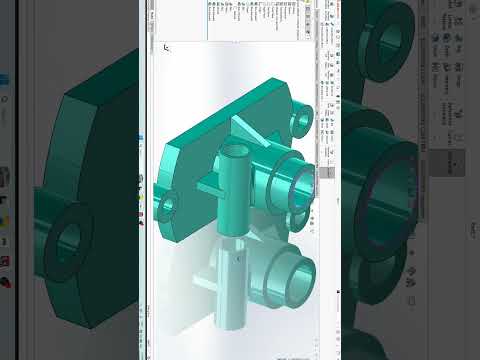
From Basic Sketches to Complex Mechanical Designs
Transitioning from simple 2D sketches to intricate 3D models can feel overwhelming for newcomers. However, mastering essential skills in modern 3D CAD software like SolidWorks opens up endless possibilities for engineers, product designers, and makers alike. Whether you are designing industrial machinery, automotive components, or custom mechanical parts, understanding how to properly structure your modeling workflow is the secret to creating clean, professional designs.
Key Steps to Modeling Complex Mechanical Components
When tackling an intricate mechanical part in SolidWorks, breaking the design down into basic geometric features makes the process manageable. Here is the proven step-by-step approach:
- Establish a Strong Base Sketch: Always start on a primary plane (Front, Top, or Right). Focus on creating accurate profile lines and ensure your initial sketch is fully defined using precise dimensions and geometric relations.
- Build the Primary Geometry: Convert your 2D sketches into solid 3D shapes using core features such as Boss-Extrude, Revolve, or Loft. For complex parts, adding material incrementally gives you maximum control over the model structure.
- Add Secondary Cutouts and Features: Use Extruded Cuts, Revolved Cuts, and the Hole Wizard to create functional features like internal cavities, thread locations, and keyways.
- Apply Finishing Touches: Round sharp edges and smooth out stress points by adding Fillets and Chamfers. Applying these features at the very end keeps your model's performance smooth and responsive.
Best Practices for 3D CAD Beginners
Building complex parts requires more than just knowing where the buttons are; it demands smart modeling habits. For anyone starting out, mastering 3D CAD tools requires strategic planning. Always keep your FeatureManager design tree organized and logically structured. Renaming key features and keeping sketches simple will save you hours of troubleshooting whenever design modifications are required later in the project.
Take Your Engineering Skills to the Next Level
With consistent practice, constructing detailed 3D mechanical components will naturally become second nature. By following hands-on practical exercises and building complex parts step-by-step, you will gain the confidence needed to turn your engineering ideas into precise, production-ready digital models and elevate your overall 3D CAD skills to the next level.
