
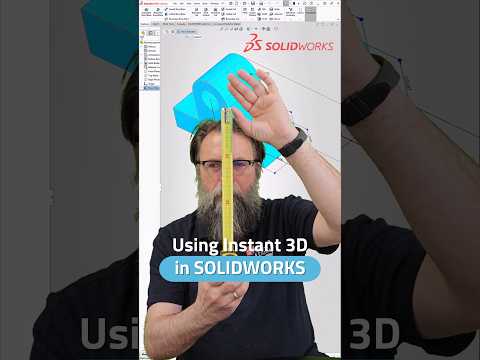
Speed and efficiency are crucial when working on complex engineering projects. If you already know how to edit 2D sketch dimensions efficiently, taking the next step into direct 3D feature editing will revolutionize your design process. Using tools like Instant 3D in modern 3D CAD software allows designers to make dynamic modifications without getting bogged down in feature trees and sub-menus.
Here is how you can leverage Instant 3D in SOLIDWORKS to accelerate your design modeling and refine your overall workflow.
What is Instant 3D in SOLIDWORKS?
Instant 3D is a powerful feature in SOLIDWORKS that enables you to quickly modify 3D geometry using onscreen drag handles and dynamic dimension editing. Instead of opening the FeatureManager design tree every time you need to adjust an extrusion depth or cut location, Instant 3D lets you manipulate geometry directly within the graphics area.
This direct-manipulation approach brings a seamless, intuitive feel to your 3D CAD projects, saving valuable time during both early conceptual design and final detailing phases.
Key Benefits of Instant 3D Editing
- Direct Geometry Manipulation: Click on any feature face to reveal blue drag handles. Simply pull or push these handles to resize extrusions, cuts, or fillets in real-time.
- On-the-Fly Dimension Adjustments: Double-clicking a feature displays its driving dimensions directly on the model. You can modify numerical values instantly without dropping down into the original 2D sketch level.
- Ruler Precision Snapping: As you move geometry handles, an integrated visual ruler appears, allowing you to snap dimensions to precise increments effortlessly.
How to Activate and Use Instant 3D
Getting started is simple. Ensure the Instant 3D button is highlighted in the Features tab of your CommandManager.
- Resizing Features: Click a feature face, select the triangular handle, and drag it to your desired length.
- Editing Dimensions: Click on any feature to display its dimensions, double-click the numerical value, enter the new dimension, and press Enter to see instantaneous updates.
- Moving Features: Select a feature on a flat face and drag it to a new location on the same plane.
Boost Your Productivity Today
Integrating Instant 3D into your daily routine is one of the easiest ways to eliminate repetitive clicks and speed up model revisions. Whether you are fine-tuning a quick prototype or updating complex assemblies, mastering these shortcuts ensures your 3D CAD modeling remains fast, flexible, and accurate. Try using Instant 3D on your next SOLIDWORKS model and experience the performance boost firsthand!

