
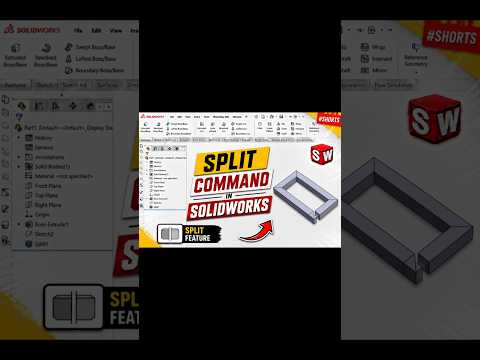
In the fast-paced world of mechanical engineering and product design, efficiency is everything. When working with professional 3D CAD software like SolidWorks, knowing the right tools can save hours of tedious manual modeling. One of the most powerful yet often underutilized features in the designer’s toolkit is the Split Command.
What is the Split Command?
The Split command is a versatile tool used to divide a single part into multiple solid bodies or to split faces on a model. Unlike a simple "cut-extrude," the Split command allows you to use sketches, planes, or even existing surfaces as "trimming tools." This creates distinct entities within your part file, which is essential for multi-body modeling and complex assemblies.
Why Use Split in Your Workflow?
Using the Split tool is a fundamental skill for anyone looking to master 3D CAD. It is particularly useful in several key scenarios: 1. Mold Design: Easily separate a part into its core and cavity. 2. Multi-Body Parts: Design complex, interlocking components within a single part file to ensure a perfect fit before exporting them as an assembly. 3. Industrial Design: Break down a sleek outer shell into different panels or materials for more realistic rendering and manufacturing.
How to Use the Split Command
To get started, follow these simple steps: * Create Your Trim Tool: Draw a sketch (like a line or arc) or select a plane that represents where you want the division to occur. * Activate the Command: Navigate to the "Direct Editing" tab or search for "Split" in the command bar. * Select Bodies: Choose the trimming tool and click "Cut Part." SolidWorks will highlight the resulting pieces. * Save and Consume: You can choose to consume the original body or save the new bodies into separate files for further detailing.
Conclusion
Mastering the Split command is a significant step toward becoming an expert in 3D CAD. By understanding how to break down complex geometry into manageable parts, you gain greater control over your designs and streamline your production process. Whether you are a student or a seasoned engineer, incorporating this tool into your SolidWorks workflow will undoubtedly enhance your modeling precision and creative flexibility.

