Cad 3D Category

Showing posts with label Fusion 360. Show all posts

Fusion 360 Body vs. Component: The Ultimate 3D CAD Guide

Tuesday, September 1, 2026
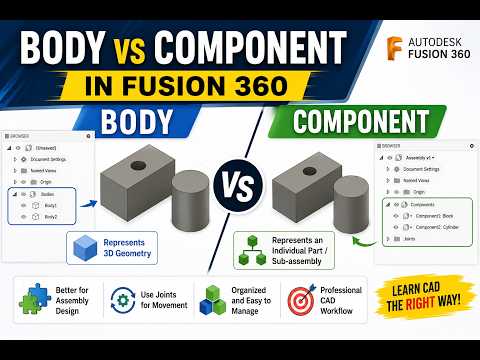
When diving into modern 3D CAD software like Autodesk Fusion 360, one of the first major hurdles beginners encounter is understanding the difference between a Body and a Component. While both represent 3D geometry on your screen, treating them as interchangeable is a common mistake that can derail your design workflow later on.

Let's break down these core concepts with practical examples so you can structure your models with confidence.

What is a Body?

In Fusion 360, a Body is a single, continuous 3D solid or surface object. Think of a body as a lump of clay or a solid block of material. You can extrude, cut, combine, and fillet bodies to build complex physical geometry.

However, bodies have strict structural limitations: - They cannot have motion joints applied directly to them. - They do not possess their own independent coordinate system (origin). - They are best suited for initial modeling steps, single-part designs, or temporary geometric tools.

What is a Component?

A Component is a self-contained organizational unit that holds geometry (bodies), sketches, construction planes, and its own unique origin. If a body is a single piece of material, a component is a complete functional part or sub-assembly.

Key features of components include: - Joints and Motion: Components can be moved relative to each other using joints to simulate real-world mechanical motion. - Assembly Structure: Components appear as distinct items in Bills of Materials (BOM) and technical drawings. - Reusability: You can create multiple instances of a component; editing one automatically updates all other instances.

Key Differences at a Glance

To streamline your 3D CAD workflow, keep these distinctions in mind: 1. Motion & Mechanics: Need your parts to articulate or move? You must use components to apply joints. 2. Drawings & Metadata: Creating detailed assembly documentation? Only components carry distinct part numbers and metadata. 3. Hierarchy: Bodies reside inside components. A component can contain multiple bodies, but a body cannot contain a component.

Best Practice: The Golden Rule

A great rule of thumb in Fusion 360 is to create a new component before you start sketching whenever you are designing a multi-part assembly. This habit keeps your browser tree organized, avoids timeline errors, and builds a professional 3D CAD design structure from the very beginning.

By mastering when to use bodies versus components, you'll create cleaner, more flexible, and fully functional 3D models every time!

3D CAD
Continue Reading | ความคิดเห็น

Is Code-Based 3D CAD Better Than Fusion 360? An OpenSCAD Review

Tuesday, August 18, 2026

Have you ever wondered what it would be like to design 3D prints using lines of code instead of dragging a mouse across a screen? While traditional visual design software dominates the maker space, script-based modeling is offering an exciting alternative for how enthusiasts and engineers approach 3D CAD projects.

In this quick review, we take a look at OpenSCAD—the popular open-source, script-based tool—and explore whether writing code can truly replace GUI-heavy software like Fusion 360.

What Makes Code-Based Modeling Different?

Unlike traditional 3D CAD programs that rely on graphical user interfaces (GUIs), OpenSCAD operates much like a programmer's text editor. Instead of selecting tools to sketch, push, and pull shapes on a digital canvas, you write precise scripts using dimensions, variables, and mathematical functions to compile your 3D models.

This code-driven approach offers several distinct advantages: - Absolute Precision: Define exact numerical dimensions for perfect tolerances and mechanical fit. - Parametric Power: Easily modify a single variable (such as wall thickness or bolt hole size) to update the entire model automatically. - Easy Version Control: Since your 3D design is stored as a lightweight text file, tracking revisions using system tools like Git becomes effortless.

Fusion 360 vs. OpenSCAD: Visual vs. Programmatic

When comparing Fusion 360 to a code-based alternative like OpenSCAD, the right choice usually comes down to how you prefer to visualize and solve spatial problems.

Fusion 360 excels at organic sculpting, complex freeform surfaces, and rapid visual iteration. It is intuitive for designers and artists who prefer a direct, interactive feedback loop while manipulating objects in a 3D workspace.

On the other hand, OpenSCAD shines when creating functional, geometric, and parametric parts. If you have a background in software development, engineering, or mathematics, building objects through code often feels faster, cleaner, and far more reliable.

Which Tool Should You Choose?

So, is script-based design actually better? There is no one-size-fits-all answer. If your focus is on artistic sculpts or fluid ergonomics, visual tools like Fusion 360 remain superior. However, if you prioritize programmatic flexibility, customizability, and algorithmic precision, adopting a script-based 3D CAD workflow with OpenSCAD might completely transform your 3D printing process.

3D CAD
Continue Reading | ความคิดเห็น

The Future of Design: Is Code-Based 3D CAD Better Than Fusion 360?

Monday, August 17, 2026

In the rapidly evolving world of 3D printing, the tools we use to bring our ideas to life are just as important as the printers themselves. Most hobbyists and professionals are well-acquainted with the visual, mouse-driven interface of industry giants like Fusion 360. However, a different philosophy is gaining traction: designing through code. This brings us to a fascinating comparison between traditional modeling and script-based 3D CAD tools like OpenSCAD.

The Shift from Mouse to Code

Fusion 360 represents the gold standard for many, offering a robust, "What You See Is What You Get" (WYSIWYG) environment. You click, you drag, and you sculpt. It is intuitive for those with a background in visual arts or traditional engineering. But what if you could define your objects using logic and variables instead? OpenSCAD is a "programmer’s solid 3D modeler." Instead of drawing, you write scripts that define geometric shapes and the mathematical operations that combine them.

Why Precision Matters in 3D CAD

One of the primary advantages of using a code-based 3D CAD system is the level of precision and "true" parametric control it offers. In a script-based environment, every dimension is a variable. If you are designing a complex mechanical part and realize a hole diameter needs to change, you don't have to click through layers of a design history. You simply update a single line of code, and the entire model recalculates perfectly. This makes it an incredibly powerful tool for functional parts where mathematical accuracy is non-negotiable.

Open-Source Freedom vs. Professional Suites

OpenSCAD is open-source and remarkably lightweight, meaning it can run on almost any hardware without a subscription fee. This stands in stark contrast to professional suites that often require high-end workstations and cloud connectivity. For makers who already have a background in programming, the transition to script-based design can feel more natural than navigating the dense, multi-level menus of a traditional mouse-based interface.

Choosing the Right Tool for the Job

Is code-based design actually "better"? The answer depends on your project. If you are modeling organic shapes, character figurines, or complex aesthetic curves, Fusion 360 is likely the superior choice. However, for those focused on mechanical engineering, custom brackets, or repetitive geometric patterns, the logic-driven workflow of script-based 3D CAD is hard to beat. By understanding the strengths of both, you can choose the best workflow to turn your digital concepts into physical reality.

3D CAD
Continue Reading | ความคิดเห็น

Download Full Heat Exchange System 3D CAD Model

Friday, November 14, 2025

Explore and download a complete 3D CAD model of a Heat Exchange System directly from GrabCAD. This high-quality engineering model is perfect for students, engineers, and designers who want to study or simulate heat transfer systems in detail.

The model includes all major components of a heat exchange system such as pipes, valves, tanks, and heat exchangers. It is compatible with major CAD software including SolidWorks, AutoCAD, and Fusion 360.

Key Features:

  • Fully detailed 3D CAD assembly
  • High-accuracy components for engineering simulation
  • Ready for analysis and design modification
  • Compatible with multiple CAD platforms

Download the CAD files now and enhance your mechanical design projects or engineering simulations.

Click here to download the Heat Exchange System CAD files

Keywords: 3D CAD model, heat exchange system, CAD files download, SolidWorks model, AutoCAD assembly, engineering simulation, mechanical design, 3D engineering model

Labels: 3D CAD, Heat Exchange, CAD Download, Mechanical Design, Engineering Model, SolidWorks, AutoCAD, Fusion 360


Continue Reading | ความคิดเห็น

How to Download High-Quality 3D Models from GrabCAD in Minutes

Tuesday, November 11, 2025

If you are a designer, engineer, or 3D artist, finding high-quality 3D models can save you a lot of time during your design process. One of the best platforms for this purpose is GrabCAD. It offers a massive library of free CAD files shared by engineers and creators worldwide. In this guide, we will show you how to download 3D models from GrabCAD quickly and safely.

Step 1: Visit the GrabCAD Library

Go to GrabCAD Library. You can search for models such as SolidWorks parts, Fusion 360 assemblies, or even 3D printable files. The search bar lets you filter results by software type, file format, or popularity.

Step 2: Choose a Verified or Popular Model

Look for 3D models that have many downloads, likes, or comments. This ensures that you are getting a high-quality CAD model. Always check the file details such as format (STEP, STL, SLDPRT, etc.) and model resolution before downloading.

Step 3: Click the Download Button

Once you’ve found the right model, click the Download Files button. You may need to sign in to your GrabCAD account to complete the download. The files are usually compressed in a ZIP folder containing multiple CAD formats.

Step 4: Import and Modify in Your CAD Software

After downloading, extract the ZIP file and open it with your favorite CAD program such as SolidWorks, AutoCAD, or Fusion 360. You can then edit, scale, or render the model based on your project needs.

Why Choose GrabCAD for 3D Models?

  • Huge community of professional engineers
  • Free access to thousands of realistic 3D CAD models
  • Supports multiple formats: STL, STEP, IGES, SLDPRT, DWG
  • Perfect for mechanical design, robotics, or 3D printing projects

Final Thoughts

GrabCAD is an excellent platform for anyone looking to download professional 3D models quickly and efficiently. With a few clicks, you can find ready-to-use CAD files for any project — whether you’re working on industrial design, prototyping, or product visualization.

Start exploring today and enhance your creative workflow with free 3D model downloads from GrabCAD!


Keywords:

GrabCAD 3D models, download free CAD files, high-quality 3D models, SolidWorks parts, Fusion 360 3D design, 3D printable models, engineering CAD library, free 3D download, mechanical design models

Continue Reading | ความคิดเห็น

Popular Posts Today

 
Support : 3Dcadbrowser | Grabcad | 3Dcontentcentral | D | E | F | G
Copyright © 2028. Engineering 3DCad Appication - All Rights Reserved