
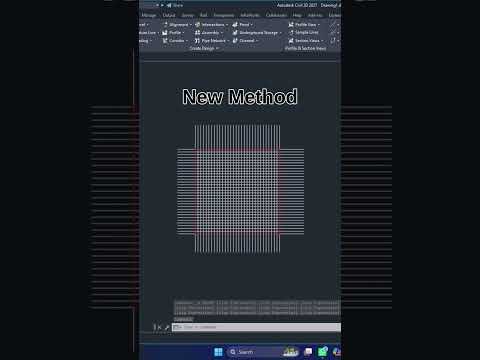
Precision is the name of the game when it comes to technical drafting. Whether you are working on a simple 2D floor plan or a complex 3D CAD model, stray lines can clutter your workspace and lead to costly errors. Learning how to efficiently remove these unwanted elements is a fundamental skill that separates amateur hobbyists from professional designers.
Why Line Management Matters
Keeping your drawing "clean" isn't just about aesthetics; it is about data integrity. In the world of professional engineering, extra lines can interfere with object snapping, bloat your file sizes, and cause significant confusion during the rendering phase. If you plan to export your 2D geometry into a more robust 3D CAD environment for extrusion or assembly, those tiny overlapping lines can prevent surfaces from closing properly, resulting in broken geometry that is difficult to fix later.
Essential Commands: Erase and Trim
The most straightforward way to remove an object is the ERASE command (shortcut: E). Simply select the line and hit enter. However, you often don't want to delete an entire entity, but rather a segment that extends too far beyond an intersection. This is where the TRIM command (shortcut: TR) becomes your most valuable tool.
In modern versions of AutoCAD, the Trim tool features a "Quick Mode" by default. This allows you to simply click or "fence" across any line segment to remove it instantly without needing to manually select cutting edges first. For those working on intricate 3D CAD layouts, holding the Shift key while using the Trim command allows you to instantly toggle to the EXTEND command, making it a versatile workflow for cleaning up messy intersections on the fly.
Using the Overkill Command for a Perfect Finish
Sometimes, extra lines aren't visible because they are hidden directly on top of each other. These "duplicate" lines are a common headache in drafting. To solve this, use the OVERKILL command. This powerful tool searches your entire workspace and automatically deletes overlapping or redundant geometry.
By mastering these simple deletion and trimming techniques, you ensure that your projects remain lightweight, professional, and ready for any advanced design stage. Whether you are a student or a seasoned pro, a clean drawing is the foundation of a successful project.
