
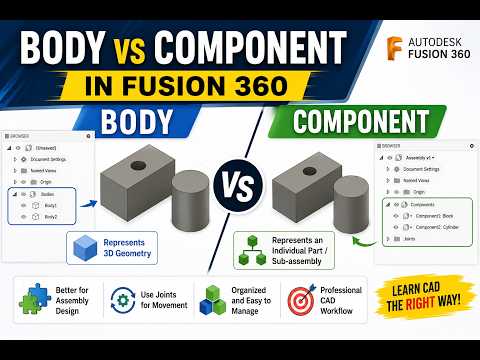
When diving into modern 3D CAD software like Autodesk Fusion 360, one of the first major hurdles beginners encounter is understanding the difference between a Body and a Component. While both represent 3D geometry on your screen, treating them as interchangeable is a common mistake that can derail your design workflow later on.
Let's break down these core concepts with practical examples so you can structure your models with confidence.
What is a Body?
In Fusion 360, a Body is a single, continuous 3D solid or surface object. Think of a body as a lump of clay or a solid block of material. You can extrude, cut, combine, and fillet bodies to build complex physical geometry.
However, bodies have strict structural limitations: - They cannot have motion joints applied directly to them. - They do not possess their own independent coordinate system (origin). - They are best suited for initial modeling steps, single-part designs, or temporary geometric tools.
What is a Component?
A Component is a self-contained organizational unit that holds geometry (bodies), sketches, construction planes, and its own unique origin. If a body is a single piece of material, a component is a complete functional part or sub-assembly.
Key features of components include: - Joints and Motion: Components can be moved relative to each other using joints to simulate real-world mechanical motion. - Assembly Structure: Components appear as distinct items in Bills of Materials (BOM) and technical drawings. - Reusability: You can create multiple instances of a component; editing one automatically updates all other instances.
Key Differences at a Glance
To streamline your 3D CAD workflow, keep these distinctions in mind: 1. Motion & Mechanics: Need your parts to articulate or move? You must use components to apply joints. 2. Drawings & Metadata: Creating detailed assembly documentation? Only components carry distinct part numbers and metadata. 3. Hierarchy: Bodies reside inside components. A component can contain multiple bodies, but a body cannot contain a component.
Best Practice: The Golden Rule
A great rule of thumb in Fusion 360 is to create a new component before you start sketching whenever you are designing a multi-part assembly. This habit keeps your browser tree organized, avoids timeline errors, and builds a professional 3D CAD design structure from the very beginning.
By mastering when to use bodies versus components, you'll create cleaner, more flexible, and fully functional 3D models every time!

