
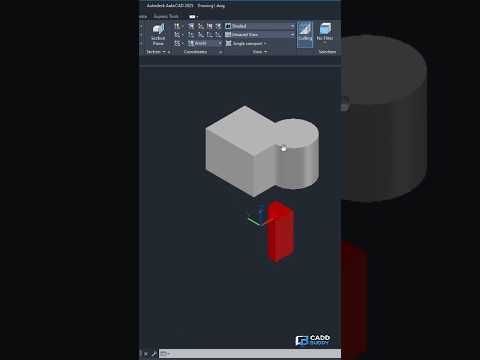
When working on complex engineering or architectural designs, precision is everything. A single overlapping component can lead to costly errors during fabrication or construction. If you rely on AutoCAD for your 3D CAD projects, detecting spatial conflicts early is essential to maintaining model accuracy. Fortunately, AutoCAD features a powerful built-in tool specifically designed for clash detection: the INTERFERE command.
What is the INTERFERE Command in AutoCAD?
The INTERFERE command allows users to compare sets of 3D solid objects to check if they overlap or occupy the same physical space. Unlike standard Boolean operations such as SUBTRACT or UNION, which permanently alter your geometry, INTERFERE highlights overlapping volumes by generating temporary 3D solids. This lets you inspect and resolve design collisions without modifying your original components.
Step-by-Step: How to Perform an Interference Check
Running an interference check in AutoCAD is straightforward and fast:
- Activate the Command: Type
INTERFEREinto the command line and press Enter. - Select First Object Set: Select the first group of 3D solids you want to check, then press Enter.
- Select Second Object Set: Choose the second set of 3D solids to compare against the first (or press Enter again to check for interferences among the first set alone).
- Review Results: AutoCAD opens the Interference Checking dialog box and temporarily highlights any overlapping geometry in red.
- Manage Clashes: Cycle through each interference point, zoom into specific conflict areas, and choose whether to delete or keep the generated interference solids for reference.
Why Clash Detection Matters for Your Workflow
Integrating regular clash detection into your 3D CAD workflow offers several key advantages:
- Prevents Manufacturing Errors: Spotting physical overlaps early ensures components fit together seamlessly during actual assembly.
- Saves Time and Money: Identifying errors during drafting takes seconds, whereas fixing mistakes on the shop floor or construction site is expensive and time-consuming.
- Improves Model Quality: Clean geometry yields accurate mass property calculations, faster rendering, and seamless exports.
Mastering the INTERFERE command is one of the easiest ways to elevate the quality of your 3D CAD designs. Incorporate this quick check into your routine to ensure your 3D models are accurate, professional, and conflict-free!

