
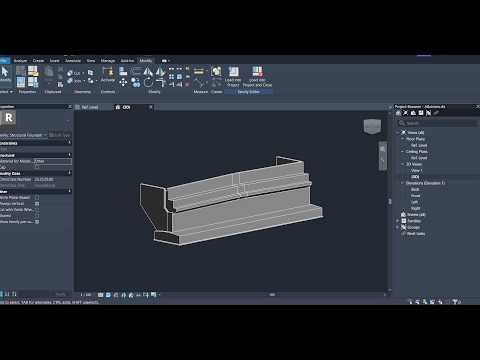
Modern civil engineering relies heavily on digital workflows to ensure precision, structural integrity, and efficient project delivery. When designing complex transportation infrastructure like highways and bridges, utilizing 3D BIM (Building Information Modeling) methodologies has become the industry standard. In bridge engineering, modeling critical substructure elements—such as piers, pillars, and abutments—demands accurate geometry and seamless structural coordination.
Why Use Autodesk Revit for Bridge Substructures?
Piers and abutments serve as the backbone of bridge structures, bearing heavy loads and transferring them safely to the foundation. Traditional 2D CAD drafting often falls short in visualizing complex geometric intersections and reinforcement details. By implementing 3D BIM workflows inside Autodesk Revit, structural engineers and students alike can construct dynamic, parametric digital models that automatically update across all plans, elevations, and section views.
Key advantages include: - Clash Detection: Spot structural spatial conflicts early in the design phase. - Parametric Flexibility: Easily adjust pier heights, footing sizes, and abutment dimensions. - Accurate Quantity Takeoffs: Generate precise concrete and structural schedules automatically.
Key Steps to Modeling Piers and Abutments
- Establish Levels and Grids: Begin by setting up project datum elements, including reference elevations for foundation footings, pier caps, and bridge deck levels.
- Model Abutments with Precision: Use parametric wall or structural foundation families to build the end-support abutments, ensuring proper wingwall alignment and bearing seat placement.
- Construct Support Pillars: Place middle piers and columns, tailoring their geometry—whether cylindrical, rectangular, or tapered—to withstand environmental and structural load demands.
- Integrate Reinforcement and Annotations: Apply structural rebar detailing inside the 3D model to create comprehensive construction documentation.
Final Thoughts
Whether you are a student showcasing an academic bridge construction project or a professional structural designer, mastering 3D BIM with Autodesk Revit significantly elevates the quality and accuracy of your work. Embracing these advanced digital workflows ultimately bridges the gap between conceptual design and real-world construction success.
