
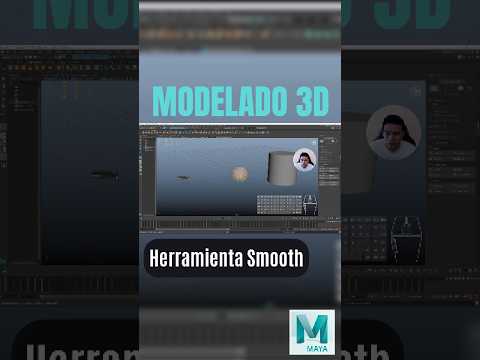
If you are diving into the world of 3D modeling, chances are you have encountered the Smooth button in Autodesk Maya. At first glance, it feels like magic: with a single click, a blocky, low-poly model turns into a sleek, organic surface. However, many beginners fall into the trap of using this feature without fully understanding what happens under the hood when working in Maya 3D.
What Does the Smooth Tool Really Do?
When you apply a Smooth operation, Maya does not just change how light hits your mesh—it actively modifies the underlying geometry. The Smooth function subdivides every face on your model into multiple smaller faces while averaging the position of the vertices.
In simple terms, it softens your shapes by creating actual, physical polygons. While this increases visual detail, it also dramatically inflates your overall polygon count.
The Hidden Dangers of Over-Smoothing
Why should 3D artists be careful with this tool? The main issue comes down to performance and workflow flexibility. Every time you subdivide geometry in Maya 3D, you exponentially increase the complexity of your scene.
- Performance Drops: High polygon counts can slow down viewport performance, increase render times, and potentially cause software crashes.
- Loss of Control: Once you smooth a mesh and clear your history, editing the base shape becomes exponentially harder. Tweaking a few vertices on a low-poly mesh is quick; adjusting hundreds of vertices on a smoothed mesh is a nightmare.
- Pipeline Issues: For real-time applications like game engines, overly dense geometry creates severe optimization problems.
Smart Alternatives and Best Practices
To maintain full control over your models, adopt these professional practices:
- Use Display Smooth Preview (The '3' Key): Pressing
3in Maya toggles a non-destructive smooth preview without altering your underlying geometry. This allows you to inspect your curved surfaces while keeping the base mesh easy to edit (press1to return to flat display). - Smooth at the End: Only apply actual geometry subdivisions when you are completely finished editing the form, or during the high-poly creation stage for map baking.
- Maintain Clean Topology: Ensure your mesh consists primarily of quads (four-sided polygons) before applying Smooth, as triangles and n-gons will cause severe shading artifacts.
Understanding how geometry subdivides is essential for anyone aiming to master Maya 3D. By using the Smooth tool intentionally rather than reflexively, you will keep your scenes lightweight, your workflows flexible, and your final models production-ready.
