
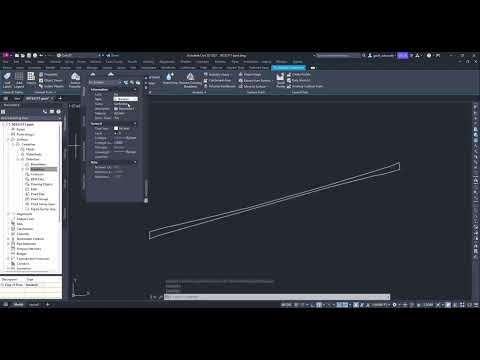
In the world of civil engineering and infrastructure design, precision is the foundation of every successful project. Whether you are mapping out a new roadway, defining a utility corridor, or establishing property boundaries, finding the exact midpoint between two linear features is a frequent necessity. If you are using Civil 3D, you don’t have to rely on manual offsets or tedious geometric calculations to find your center.
Why Automate Your Centerline Creation?
Manually drawing a centerline between two irregular polylines is not only time-consuming but also prone to human error. Even a slight deviation can impact earthwork calculations or drainage slopes. By leveraging the automated geometric tools within Civil 3D, you ensure that your design remains mathematically accurate and dynamically linked to your existing site data.
Step-by-Step: Generating a Centerline
Creating a centerline between two existing polylines is a straightforward process that can significantly speed up your drafting phase. Follow these steps to achieve a clean result:
- Prepare Your Source Data: Ensure that the two polylines representing your edges (such as a curb line or a ditch) are clean and do not contain unnecessary overlapping vertices.
- Access the Command: While there are various ways to achieve this, many professionals use the "Centerline" command found under the Annotate or Modify tabs, or specific geometric tools within the transparent commands.
- Select the Boundaries: Select your first polyline and then the second. The software will calculate the average distance between all corresponding points to generate a new line exactly in the middle.
- Refine the Result: Once the line is generated, you can convert it into an Alignment if you need to create profiles or cross-sections later in your design process.
Pro-Tips for Better Accuracy
To get the best results, ensure that your polylines are drawn in the same direction. If one polyline starts at the north and the other at the south, the software may struggle to calculate the relationship between the vertices. Additionally, simplifying the polyline (reducing the number of vertices) before creating the centerline can result in a much smoother, more manageable line.
Mastering these small but essential workflows in Civil 3D will not only improve the accuracy of your technical drawings but also save you hours of manual rework. Start implementing this technique today to streamline your site design and focus on what really matters—building better infrastructure.
