
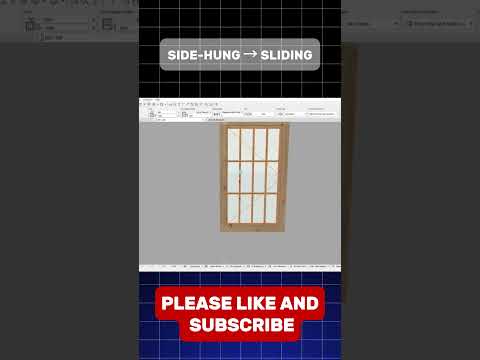
Creating realistic architectural visualizations often comes down to the smallest details. When working on a project, leaving windows strictly closed or uniformly static can make your rendered views look rigid and artificial. Fortunately, adjusting window opening angles is a simple yet powerful way to bring life, dynamism, and realism into your ArchiCAD 3D models.
In this quick guide, we’ll explore why customizing window angles matters and step through how to easily gain complete control over window appearances in your 3D views.
Why Customize Window Opening Angles?
Whether you are preparing a quick concept snapshot for a client or generating high-end architectural renders, small dynamic touches make a massive difference. Adjusting window angles allows you to:
- Enhance Visual Realism: Open windows break up flat facade reflections, making buildings look lived-in and natural.
- Showcase Functionality: Demonstrate how specific window types—such as casement, awning, or tilt-and-turn windows—operate in real life.
- Improve Spatial Storytelling: Capture natural light entry and highlight airflow in your ArchiCAD 3D design presentations.
Step-by-Step: How to Adjust Window Angles in ArchiCAD
Taking control of your window angles takes just a few seconds once you know where to look:
- Select the Window: In your floor plan or 3D view, select the window object you want to adjust.
- Open Window Settings: Press
Ctrl + T(Windows) orCmd + T(Mac) to open the Window Selection Settings dialog box. - Navigate to Custom Settings: Go to Window Settings and Openings under the main settings tree.
- Locate the Opening Angle Field: Look for the 3D Opening Angle parameter (often found under the Model Attributes or Opening options).
- Set Your Angle: Input your desired degree (e.g., 30°, 45°, or 90°) specifically for the 3D representation.
- Apply and View: Click OK and jump back into your viewport to see the transformed ArchiCAD 3D view instantly!
Pro Tip for a Faster Workflow
If you want to quickly edit window angles without opening the settings menu every time, use the dynamic editing hotspots directly in the 3D window. Simply select the window and drag the purple editing node to adjust the opening angle interactively!
Conclusion
Mastering small settings like window opening angles gives you total creative control over your architectural presentations. Try tweaking your window angles today and watch your 3D scenes instantly gain depth and character!
